OpenText Internet of Things (IoT) Platform
Gain operational efficiencies, improve asset availability and leverage shipment insights

Overview
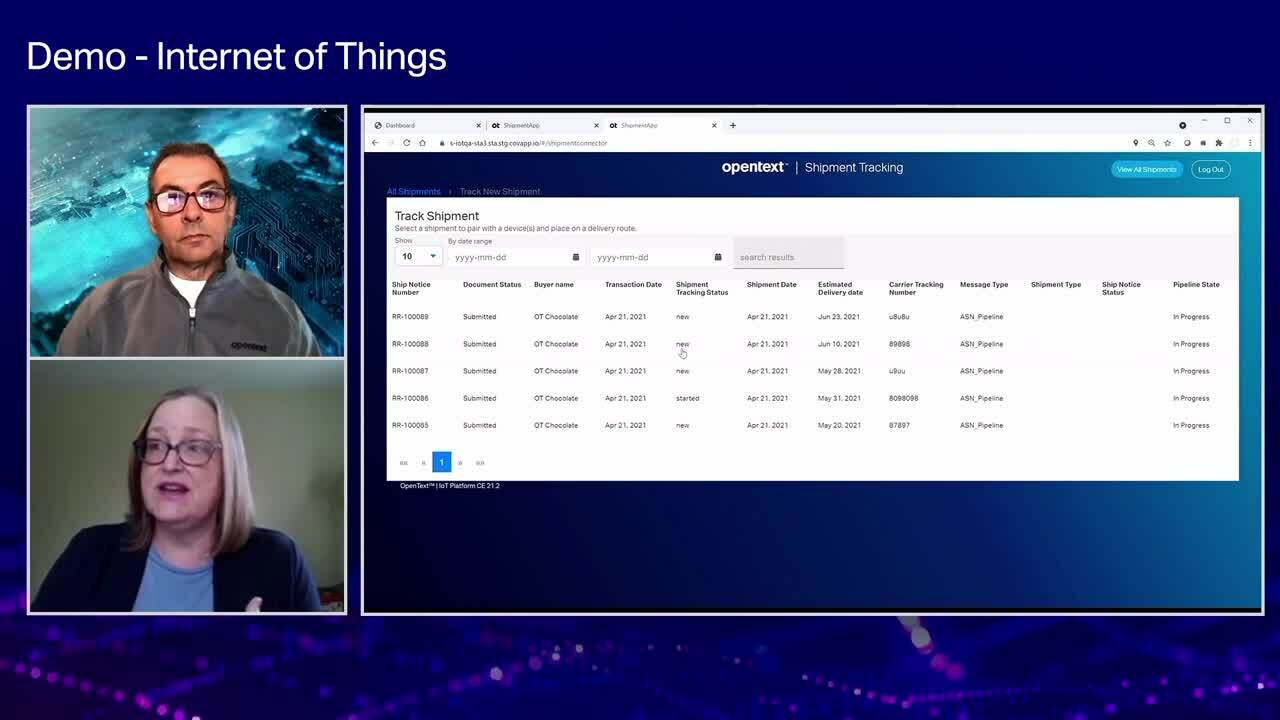
Choose the leading IoT platform
-
Actionable insights
Collect, cleanse and perform IoT data analytics to maximize legacy assets and supply chain operations ROI and performance.
-
Address supply chain disruptions
Augment supply chain data with contextual and environmental information to better manage KPIs and improve trading partner collaboration.
-
Manage risks
Leverage an identity-centric IoT solution to better understand the complex web of relationships across ecosystems.
Cloud-based IoT solution benefits
Discover the advantages of using an IoT platform.
-

Generate data insights
Consolidate and analyze data drawn from multiple devices and systems with IoT data integration.
-

Improve security
Authenticate identities across an ever-increasing pool of devices and data sources.
-

Maintain data integrity
Govern how data is managed, shared and used within the IoT solution and the larger partner ecosystem.
-

Accelerate IoT system integration
Remain system agnostic and support interoperability across multiple IoT protocols.
-

Transform asset operations
Prepare for the exponential growth of digitally connected industrial and supply chain assets.
-

Increase supply chain efficiencies
Leverage a fully integrated supply chain solution to identify and address weaknesses throughout the entire supply chain.
Key IoT platform features
-
Secure device management
Establishes digital twins of physical objects, making it easier to visualize contextual data. Provisions and de-provisions secure IoT endpoints and data access to minimize threats.
-
Ecosystem integration
Offers comprehensive machine-to-machine or application-to-application integration capabilities and seamlessly exchanges sensor-based information with key business systems, such as ERP, WMS and TMS.
-
Unified messaging
Supports any-to-any communication via a comprehensive messaging broker that enables rapid, secure and flexible integration of structured and unstructured data, from MQTT to FTP.
-
Actionable insights
Combines analytics with AI and machine learning to quickly assess operational performance and transform data into easy-to-understand visual information.
Frequently asked questions
Take advantage of OpenText and partner services
Deployment
OpenText offers deployment choice and flexibility for Internet of Things.
- Run anywhere and scale globally in the public cloud of your choiceOpenText Public Cloud (Multi-Tenant SaaS)
- Develop, connect and extend your Information Management capabilities.API from OpenText Developer Cloud
Professional Services
OpenText Consulting Services combines end-to-end solution implementation with comprehensive technology services to help improve systems.
- Your journey to successOpenText Professional Services
- Drive deeper product adoption and richer engagementCustomer Success Services
- Accelerate the Information Management journeyConsulting Services
- Comprehensive Information Management services and resourcesExplore Professional Services
Partners
OpenText helps customers find the right solution, the right support and the right outcome.
- Search OpenText's partner directoryFind a Partner
- Industry leading organizations that enhance OpenText products and solutionsStrategic Partners
- Build better software productsOEM Solutions
- Explore OpenText's Partner solutions catalogApplication Marketplace
Training
OpenText Learning Services offers comprehensive enablement and learning programs to accelerate knowledge and skills.
- Meet the demands of all types of users for effective adoptionLearning Services
- Unlimited access to training with personalized tiers to fit your needsLearning Subscriptions
Communities
Explore our OpenText communities. Connect with individuals and companies to get insight and support. Get involved in the discussion.
- Explore ideas, join discussions and networkOpenText’s forums


